
Home › Forums › Graphics / Blender › Error with bone and shape key animation
Tagged: blender
- This topic has 6 replies, 3 voices, and was last updated 3 months, 1 week ago by
 Mikhail Luzyanin.
-
AuthorPosts
-
2026-07-22 at 2:42 am #88052
kenji
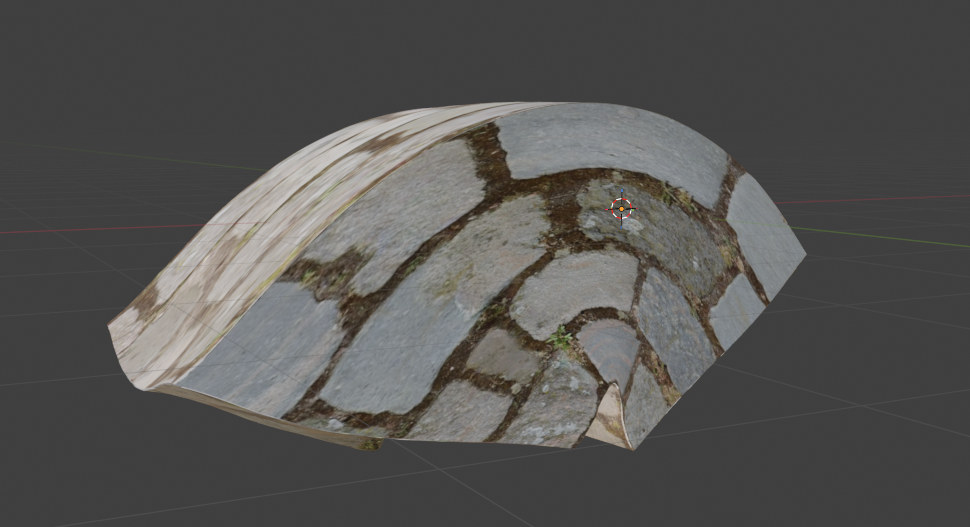
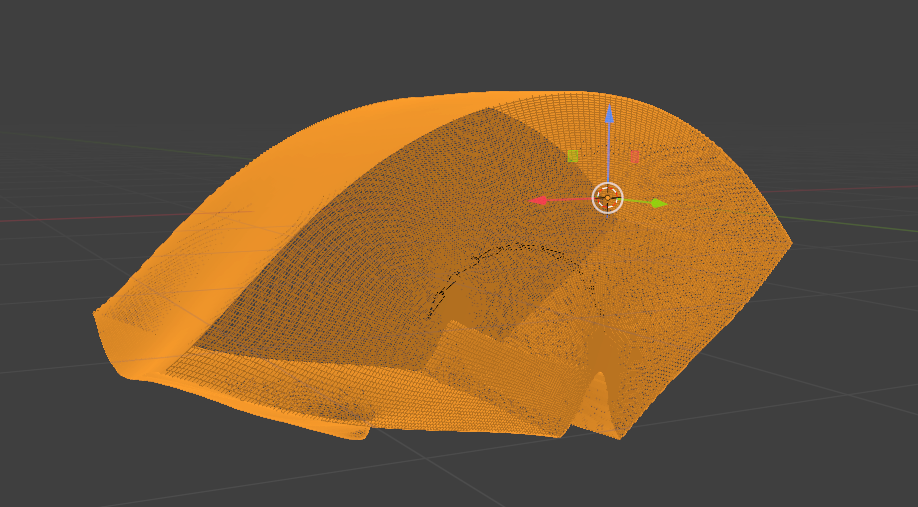
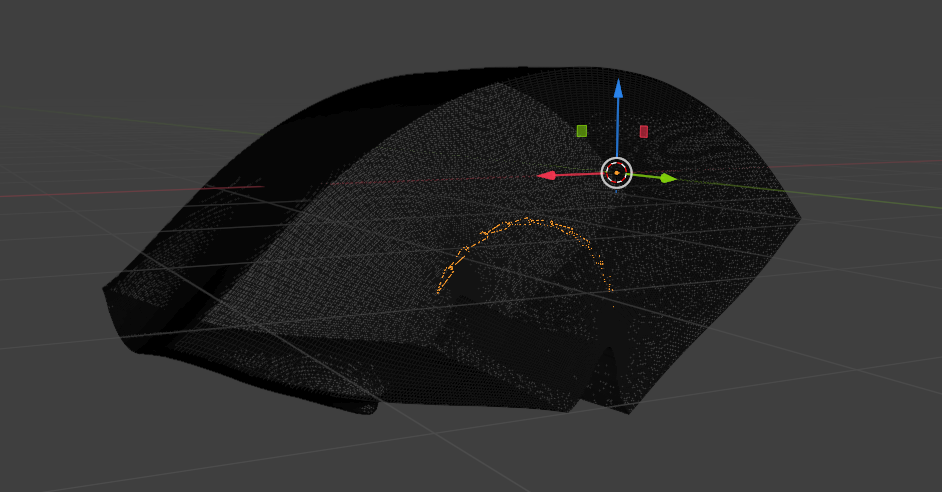
ParticipantHi, for some reason i can’t use shapekeys(morph) with bone in pose posision, i always have to change the bone into rest position then i can use shapekeys
I’m also can’t set shapekeys animation with bone2026-07-22 at 5:27 am #88053 xeonCustomer
Could you provide an example of what you are trying to achieve? I do not understand why you are trying or wanting to use shapekeys with bones? Typically you would animate keyframes of your bones and this would control the animation of your mesh. Now with that said…I guess I could come up with some wild ideas…but your next questions has me more perplexed…you are wanting to set shapekeys animation with bones…. So in this case you have a object that you have control over with shape keys….then you are adding a bone to that shapekey controlled object and wanting the bone to influence the shapekey object in addition to the shapekey control? My thoughts are you have a sphere and you want it to transition to a cube…so you create a shapekey system…now you want that shapekey to have bones so you can bend it?
Xeon
Route 66 Digital
Interactive Solutions - https://www.r66d.com
Tutorials - https://www.xeons3dlab.com2026-07-22 at 5:41 am #88054xeonCustomerOk…so giving this some thought..I played with a simple cube…and edit two vertices making a simple shape to use as the shapekey. I keyframed the shape key value at 0 at frame 0 and 1 at frame 48. I then created a bone and parented the shapekey to the bone….create. With the bone active I animated the rotation in the X axis… frame 0 – 0 degrees and frame 48 – 360 degrees. Just to test out if you can create a shapekey animation then attache that animation to a bone…and the answer is yes you can and more importantly it works just fine in Verge3d using Blender 5.1. I didn’t test other versions.
You can see a demo of it here: https://v3d.net/1hra
Full project including blend file located here: https://v3d.net/1hrbIs this what you are trying to do?
Xeon
Route 66 Digital
Interactive Solutions - https://www.r66d.com
Tutorials - https://www.xeons3dlab.com2026-07-22 at 6:40 am #88055ParticipantI did try something and i might be something wrong with bone
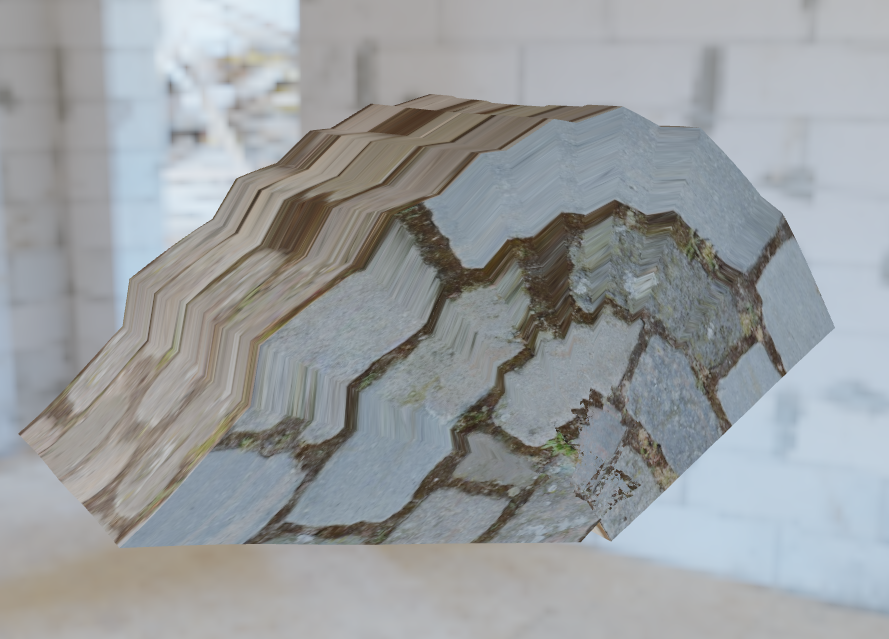
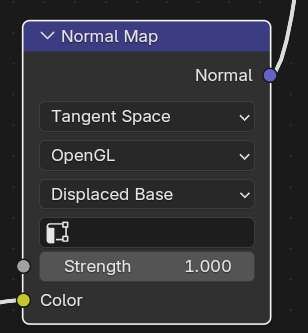
And i try another thing in my project, when i apply material it have error. When i removed the material it suddenly ok. When i apply material back and deleted the normal map it ok
I’ve found solution: if i replace normal map node with bump node, it work2026-07-22 at 9:59 am #88115 Mikhail LuzyaninStaff
For me it works fine (try my example), may be you can share your blend file for tests?
Attachments:
Co-founder and lead graphics specialist at Soft8Soft.
2026-07-22 at 11:04 am #88117Participant2026-07-23 at 9:01 am #88122Mikhail LuzyaninStaffSeems like it’s a bug, we’ll fix it in our next release, but for now you can export your scene from the first frame, it helps to fix the bug.
Co-founder and lead graphics specialist at Soft8Soft.
-
AuthorPosts

- You must be logged in to reply to this topic.